
Yes, you can finally schedule a message on WhatsApp. The app is rolling out a built-in scheduled messages feature on iPhone and Android: type your message, press and hold the send button, and pick a date and time anywhere from 10 minutes to two weeks ahead. It works in one-on-one and group chats, and the message goes out even if your phone is off or offline at that moment.
The catch is that the rollout is happening in waves, so many people don’t have it yet. Here’s how to use it, what you can and can’t schedule, and what to do if the option isn’t showing up for you, just in time for Thanksgiving, Christmas and New Year greetings.
Is WhatsApp’s scheduled messages feature official?
Mostly, yes. WhatsApp hasn’t published a blog post or press release, but the feature is now reaching the regular, stable versions of the app rather than just beta testers. Gadgets 360 confirmed on November 25 that it is working for some users, though not everyone. Digit reports that WhatsApp’s official X account reposted a user’s “Schedule WhatsApp Messages” post with the reply “it’s working,” which is about as close to an announcement as WhatsApp has made.
The feature has been a long time coming. WABetaInfo spotted WhatsApp working on it in the iPhone app back in June, and French tech site Frandroid says a beta opened in mid-October. Rival Telegram has offered scheduled messages since 2019, Frandroid notes, so WhatsApp users have waited about seven years longer.
How to schedule a message on WhatsApp
If the feature has reached your account, the steps are the same on iPhone and Android:
- Update WhatsApp from the App Store or Google Play.
- Open the individual chat or group you want to message.
- Type your message, or attach a photo or video.
- Press and hold the send button instead of tapping it.
- Choose the schedule option, then pick a date and time from the calendar and clock that appear.
- Confirm. The message waits until the time you chose and then sends automatically.
You don’t need to keep WhatsApp open, and your phone doesn’t need a signal or even a charged battery when the time comes. Frandroid explains that the message is held on Meta’s servers until delivery, while staying protected by end-to-end encryption like the rest of your chats.
On WhatsApp Web
Some people are seeing the feature on the computer first. When Brazil’s g1 tested it on November 19, two of its three test accounts had the option only on WhatsApp Web. There, you type your message and click the clock icon in the text box to choose the day and time.
What you can schedule, and the limits
Based on testing by Gadgets 360, Frandroid and g1, here’s how the feature works right now:
- Time window: at least 10 minutes from now and no more than two weeks ahead. When g1 tested it on November 19, the latest date it could pick was December 3.
- What works: text, links, photos and videos.
- What doesn’t: documents don’t appear to be supported, and g1 couldn’t schedule voice or audio messages either.
- Attachments: one at a time, according to Frandroid.
- Chats: both individual conversations and groups.
Since the feature is new and still rolling out, these details could change as WhatsApp opens it to more people.
How to see, edit or cancel a scheduled message
A scheduled message doesn’t appear in the conversation like a normal one. Instead, it waits in a new section of the chat’s info screen (tap the contact or group name), where you can review it or delete it before it goes out. Digit says a “You scheduled a message” notice with a View link appears in the chat so you can find it.
Two details are worth knowing:
- Cancelling leaves no trace. Deleting a scheduled message before it’s sent doesn’t notify the other person, because nothing has been delivered yet. That’s different from deleting a sent message, which leaves “This message was deleted” in the chat.
- No “scheduled” label. According to Frandroid, the person who receives it can’t tell it was scheduled in advance. It simply arrives at the time you chose.
How it works in group chats
In a group, a scheduled message only goes to the people who were members when you scheduled it. If someone joins the group before the send time, they won’t receive it. Keep that in mind if you’re scheduling a reminder for a group that’s still growing, such as a family reunion or trip chat.
Why you might not have it yet
WhatsApp is turning the feature on account by account, and there’s no setting to force it. Frandroid’s advice: update the app, then press and hold the send button in any chat. If the scheduling window doesn’t appear, you’ll have to wait for it to reach you. Digit observed that more iPhone users seem to be getting it than Android users so far.
One more reason to update: WABetaInfo reports that from November 30, 2026, WhatsApp will stop supporting iPhones running versions older than iOS 15.5. Phones on those versions won’t get new features or security fixes, scheduled messages included.
Don’t download “WhatsApp scheduler” apps or modded versions to get the feature early. Frandroid points out that third-party schedulers needed access to your account and raised real privacy concerns. WhatsApp’s Help Center also says using unofficial apps such as WhatsApp Plus or GB WhatsApp can get your account temporarily banned.
Also rolling out: view-once text messages
The same long-press menu is gaining a second option for some Android users. Digit reports that WhatsApp is introducing view-once text messages: type a message, press and hold send, and choose “View once.” The recipient can read it once, but can’t forward it, copy it or take a screenshot of it. It’s useful for sharing things like a Wi-Fi password or door code that you don’t want sitting in a chat forever.
Smart ways to use scheduled messages this holiday season
- Greetings across time zones. If family live abroad, you can schedule a “Happy Thanksgiving,” “Merry Christmas” or “Happy New Year” message to land at their midnight or breakfast time, without setting an alarm.
- Birthdays. Write the message when you remember, and schedule it for the morning of the day itself (up to two weeks ahead).
- Group reminders. Schedule a “potluck starts at 4, bring chairs” note or a gift-exchange reminder for the family group the day before.
- Travel. Before a long flight, schedule an itinerary or pickup details to reach whoever’s collecting you, even if you’re still in the air. Our guide to free in-flight Wi-Fi on Thanksgiving flights covers which airlines offer free Wi-Fi so you can message from the air.
- Work boundaries. Draft a message late at night and schedule it for the morning, so you’re not pinging colleagues after hours.
Scheduled messages are a simple tool you control yourself. If you’re curious about letting AI handle more of your messages and errands, see what Meta’s Muse AI agent can do inside WhatsApp, and if privacy is your bigger concern, here’s how Google’s AI Mode temporary threads keep searches off your history.
FAQ
How far in advance can you schedule a WhatsApp message?
Up to two weeks ahead. The earliest time you can choose is 10 minutes from now.
Will a scheduled WhatsApp message send if my phone is off?
Yes. Reports say the message sends at the chosen time even if your phone is offline, switched off or out of battery.
Can the other person tell a message was scheduled?
No. According to Frandroid, there’s no label showing it was scheduled. It arrives like any other message.
Can I schedule a voice note or document?
Not right now. Testing so far shows text, links, photos and videos only.
Why don’t I see the schedule option on WhatsApp?
The feature is rolling out gradually. Update WhatsApp and try pressing and holding the send button. If nothing appears, it hasn’t reached your account yet, and there’s no way to force it.
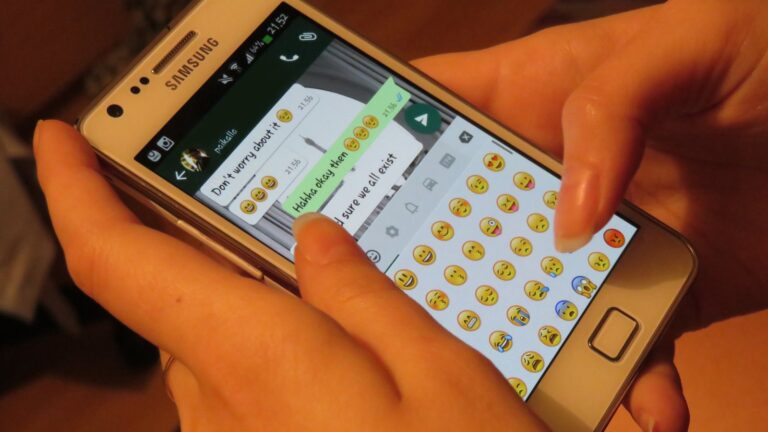
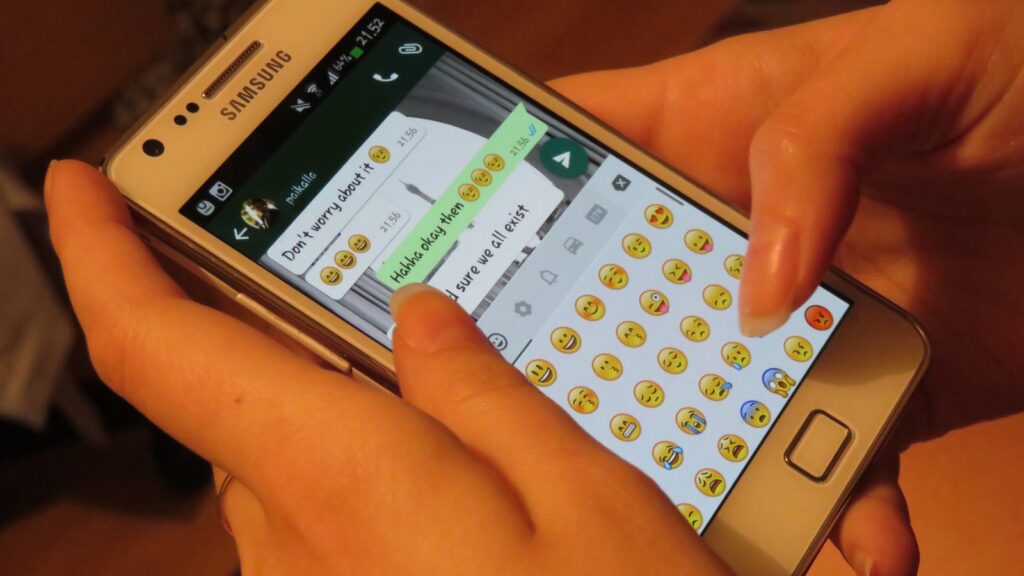
Featured image: texting on WhatsApp (file photo, not the scheduling feature), by Helar Lukats, Wikimedia Commons, licensed under CC BY-SA 4.0, resized.